Using Lastpass for improved password security

It’s that time of year for me — VUIT is sending me an email every day saying it’s time to change my e-password. Thankfully, I have a great tool to help manage my passwords and make them more secure — and you can, too!

Lastpass is a free and easy-to-use password management tool that runs right in your browser. It is encrypted and secure — Lastpass is not able to access your passwords. (Learn more about how it works.)

The most secure passwords are unique, long, random-character strings that are not found in the dictionary. Most of us haven’t mastered the memorization of a zillion random-character strings. Thankfully, Lastpass has! It will store all of your passwords in a secure vault that is only accessible on your local machine.┬áWhen you visit a site that requires a login, Lastpass will fill in your credentials automatically. You can even set it to go a step further and log you in as soon as you land on the page. Magic! And when you create a new account on a site, Lastpass will offer to generate a secure password for you. It will then save your new password in your password vault.

There are some other nice features too:

  • Form fills: Shop online much? Save your credit card information in your vault and have it auto-fill at checkout on any shopping site. Apologies in advance to your wallet.
  • Secure notes: This is a place to securely store and access other information you might need easy access to, such as social security numbers or passwords for things that aren’t websites (software, Windows, etc.).
  • Sharing: You can securely share passwords with other Lastpass users. This is great for households who share a login for things like utilities and Netflix. Never send passwords via email!
  • Security challenge: This feature analyzes the security of your vault and offers recommendations on how to improve your overall security, such as not reusing passwords and creating stronger passwords to replace weak ones.
  • Export: You can easily export your passwords at any time. This is useful not only if you plan to stop using Lastpass in the future, but also if you want to print out all of your passwords and store them with your other important financial documents, such as your will.

So stop reusing that same old password, and give Lastpass a try!
Audio-Visual Resources in the Community Room

Video recording and streaming is now available in the Community Room for your meeting or event.

The podium is height-adjustable with a lamp, microphone, computer with USB monitor, and HDMI and VGA video connections for use with laptops. Adapters are available for VGA to Mac video and HDMI to USB-C. A connection can also be made wirelessly using AirStream. Wireless laser pointers/clickers are available by request.

Also on the podium is a touchscreen control for the projector, video camera, audio levels, light settings, and retractable video screen and window shades. A duplicate touchscreen control is located in the AV closet at the back of the room.

Besides the podium microphone, the Community Room has three wireless handheld microphones and two wireless lapel microphones available, along with a floor stand and three table stands. Up to four wireless microphones can be used at one time.

What are they talking about?

Are you hearing discussions about Alma and Primo and think that people are speaking a completely new language? Well, they are! But help in understanding it is just a click away.

ExLibris has an excellent glossary on their Knowledge Center site here:

Alma Glossary

You can go to a particular term and see a definition and then click on links at the end to see more detailed information.

Give it a try! Look up “Fulfillment”, “Community Zone” or “Metadata editor”. Or get really crazy and look up “Selective package”!

Bookmark the link to the glossary and have fun learning the new language!

2017 Library Checkouts Overview

In Year 2017, the library checked out 124,570 items to faculty, graduate students, undergrads, and Vanderbilt community, that’s 341 items a day!

Most checked out titles 

The most checked-out individual titles in 2017 are:

  • HD30.22 .F76 2016, in Management Library, Managerial economics : a problem solving approach,┬á checked out 151 times during the year.
  • Come really close is ‘QD415 .V65 2016’ in science library, Fundamentals of biochemistry : life at the molecular level┬á checked out 148 times;
  • Third one is ‘QD253.2 .K55 2015’, also in science library, Organic chemistry, checked out 111 times during the year.
  • Fourth one: HD58.6 .N45 2015′, in management library, Negotiation : readings, exercises and cases, checked out 55 times

Did you know juvenile fictions (LC classification of PZ7)  and early childhood education books are popular collections to be checked out among students and faculty?

In juvenile fiction category, the top popular titles are:

  • PZ7 .P448558 Ral 1995:┬á Rainbow Fish to the rescue!
  • PZ7 .R1814 Bal 2011: A ball for Daisy
  • PZ7 .K28132 Far 2002: Farfallina & Marcel
  • PZ7 .L32073 My 2016: My sister Rosa
  • PZ7 .W65535 Th 2007: There is a bird on your head!
  • PZ7 .R3476235 Tow 2016: Towers falling

DVDs from Blair School of Music recital recordings are most checked-out DVDs. Besides the musical DVDs, the top popular video DVDs are:

  • DVD 7049: Dangerous living : coming out in the developing world
  • DVD 6527: Star Wars, episode VII, the force awakens (Motion picture)
  • DVD 6644: God’s not dead (Motion picture)
  • DVD 6809:┬áAu revoir les enfants (Motion picture)
  • DVD 3116:┬áMemento [videorecording]

Here is a list of popular topics for students from each school:

  • For Divinity students, they enjoyed reading titles on┬áArt and Religion(BR115) and Asian American Religion (BR563).┬á
  • For Music students, they checked out lots of scores for┬áSongs with Piano (M1620).┬á
  • Peabody students read and checked out titles in Early childhood education (LB1139.5).
  • For Management students, Managerial economy (HD30.22)┬áis the major topic of their checked out items.
  • Students walked into Central library are most likely to checkout DVDs, or titles on African American history (E185.615).
  • Students use Science library the most, will check out periodicals and titles on Biochemistry.

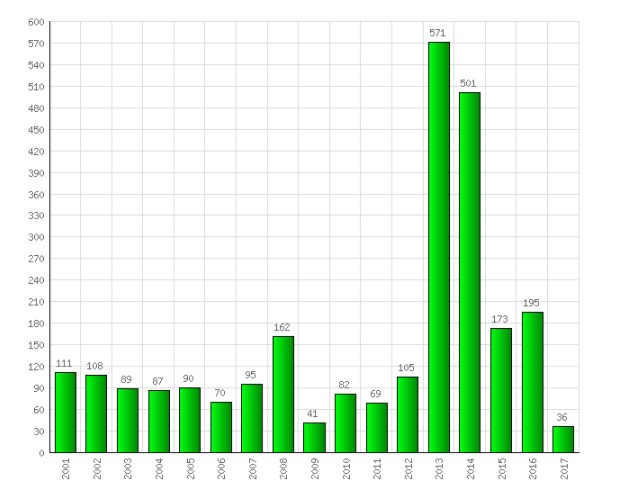
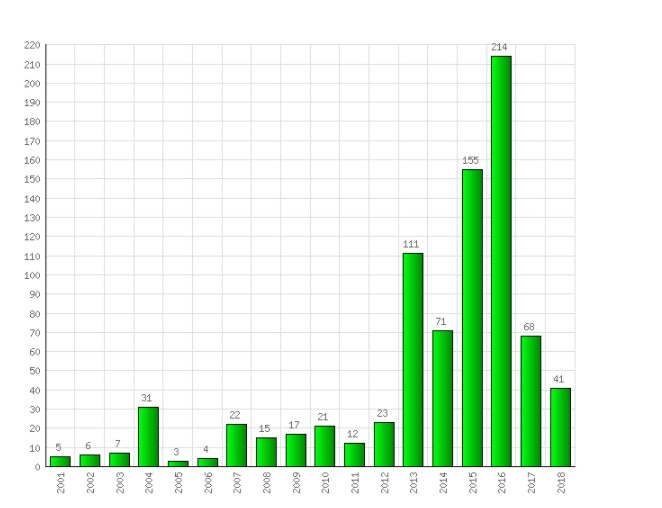
Did you know in year 2017, our library users are most likely to check out books published in between 2013 and 2016?

The pattern is specially true for Science library users and Management library users:

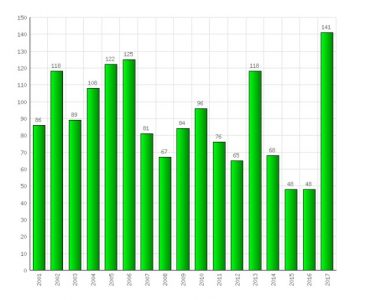
But for music library users tends to checkout scores either quite new (2017) or published at the beginning of 21st century.

When checkouts happened?

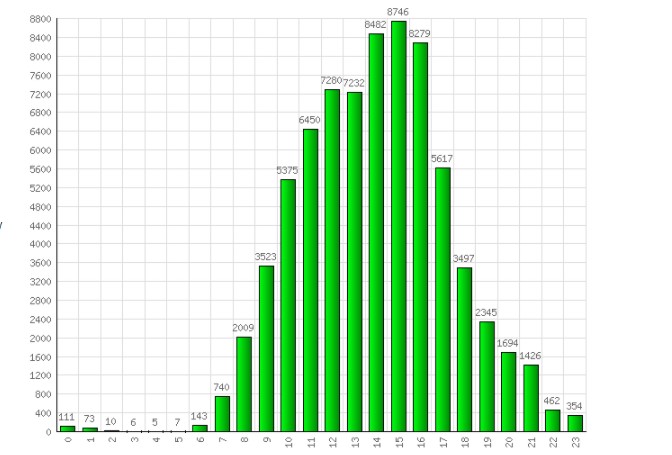
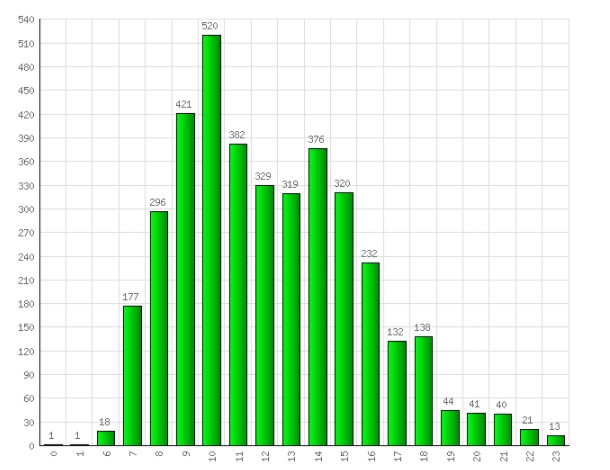
For most libraries,  more students came to library in between 2pm to 5pm to checkout items; but law students and faculty use the library more often in the morning than in the afternoon, the peak checkout hour for law library was 10am.

Checked out hours for Law library users:

Did you know the most popular checkout day of the week is Tuesday? This is true to all libraries.

Did you know 1/9 and 1/10 are the busiest checkout day of 2017 for Central Library? Total 375 and 338 items were checked out respectively from Central library.   The most busy day for each library are listed here:

  • 2/23: Peabody
  • 8/4: Law
  • 8/13: Management
  • 8/30: Science
  • 11/16: Music library
  • 12/5: Divinity

The system wide busiest checkout dates were:   01/09,  01/10, 11/6, 11/28,  3/13, 1/11, 10/17, 10/30,10/24, 3/21, 3/27. On each of those dates, above 500 items were checked out throughout the library system.

Want to find out more on library usage patterns, interesting facts and numbers?  Submit an inform, we at LTDS will find out an answer for you.

VUIT Update

On Sunday, March 4, VUIT will be updating the authentication system used by Vanderbilt [Ping] starting at 6am. VUIT will be doing this as a rolling update so we do not expect any down time. Areas that this affects are DiscoverLibrary, Proxy server, and several Vanderbilt systems that require log in. LTDS will keep an eye on the systems, but if you experience any issues, please let us know by submitting an INFORM. Thank you.

How to keep up with the LTDS blog

We hope you’ve found our blog to be helpful since we launched it last month! Here are some ways to keep up with new posts:

Heard Alert
LTDS Blog on Heard Alert

There is a box in the right sidebar of Heard Alert titled “Latest News from LTDS” (see attached screenshot). It contains the latest 3 posts from the blog with the newest post at the top of the list.

RSS Feed

The main RSS feed URL is: https://ltds.library.vanderbilt.edu/feed/. You can put this into your favorite RSS reader and be notified of new posts almost instantly.

Interested in a particular category, tag, or author? The blog has an RSS feed for each of those, too! See this article for details. If the article looks like Greek to you, submit an Inform ticket and we can help you get the right feed URL for the content you want.

Email

You can use the RSS feed to set up an email alert. Free third-party services such as Blogtrottr and IFTTT provide RSS-to-email functionality.

Interested in receiving an email straight from the blog for every new post? Let us know! If there is enough interest, we will add this feature to the blog, eliminating the need to use a third-party service.

Questions?

Email Jodie or submit an Inform ticket!

Bring an Idea to Life with 3D Printing

Even though the Medical Library is closed for renovations, 3D printing is still available. Want to have something printed? Here is what you do:

Email a link from a 3D printing file repository –┬áThingiverse, YouMagine, NIH 3D Print Exchange, etc. — or attach your file (.STL or .OBJ extensions only) to ebl3dprint@vanderbilt.edu.

Want to try creating something yourself? Tinkercad, an easy-to-use online 3D CAD design tool, is a good place to start.

We will take a look at the request and consult with you about printability, size, resolution, color, and timeframe. Then when it is ready to be picked up, we will send you an email.

Currently, there is no charge for smaller print jobs.

Virtual Desktop Infrastructure (VDI) in the Libraries

Virtual Desktop Infrastructure (VDI) in the Libraries


  • What is VDI?

VDI utilizes a desktop computer to run software located on a remote server.  This is the emerging campus standard, it is being implemented as the libraries move to VUIT desktop support for our public computers.

  • Why is the University adopting VDIs?

The goal of the VDI program is to reduce the overall costs of desktops across the University.  As the Library has continued to increase support for digital initiatives, library staff available for desktop support has decreased.  Utilizing the service offered by VUIT allows the public machines to be replaced and maintained on a regular cycle.

  • What are the advantages of using the virtual desktops?

Since the software runs on a server, additional software can be added more quickly.  Changes to the software configuration can also occur more quickly since staff do not need to touch each individual computer.  Some campus libraries require specialized applications on their public workstations, the virtual server environment supports that.  Lastly,  the virtual desktop uses approximately 10% of the power that a physical desktop uses.

  • Will this service be expanded to other staff workstations?

At this time, there are no plans for VUIT to support staff or service desk computers.  VUIT will also not support laptops that are circulated.

  • Why does it take so long to log into the desktop?

The first time a user logs into a machine the must create a new profile.  This will only occur once for a user in each library location.   Initial logins can take as long as 4 minutes.  Subsequent logins in the same library will be much quicker, often under 30 seconds.  If a user goes to a different campus library with a different virtual machine configuration, they will again experience the initial 4-minute profile building login.  Within one library this should be a one-time event.

  • What other initial setup issues will patrons see?
    The first time a user opens an application on a virtual desktop they will see some setup and installation messages for that application. On the very first login, they can expect to see a Pharos installation message.  Once that is accomplished, all printers in that library should be available from within any application, as they were before.


  • Does the user have the ability to customize their ÔÇÿvirtual desktopÔÇÖ?

The virtual machines will work similar to the deep-frozen machines.  Any data saved will be removed when the user logs off.  Users should save their information to a network drive or a USB drive.


  • Will the workstation timeout?

Yes, the workstation will timeout after 15 minutes of no activity.


  • Should the VDI workstations be turned off at night?

No,  the workstations can remain on.


  • Who do I contact if changes are needed?

Please submit an INFORM as you would in the past.


  • Who do I contact if a problem is encountered?

Please submit an INFORM.  However, you should also report directly to VMDP.  When reporting to either LTDS or VMDP please include the full ID number which is listed just under Vanderbilt Information Technology (CLN-BQNH5J2 in the example below) on the label in the front of the machine.


  • What about the older Mac workstations?

Currently, only the PCs will be replaced.  The discussion to replace the Macs is ongoing but will not move forward until after the PCs are replaced.


  • The CD-ROM stations have not been replaced, will they be upgraded?

The CD-ROM workstations are not in scope for this project.  LTDS is currently planning on replacing these machines.


  • Who do I send comments to about the new system?

Send comments to ltds-comments@list.vanderbilt.edu


Recover Deleted Items in Outlook

You have been working away in your Outlook, trying to clean up space. The Delete key is a wonderful thing for this process, but suddenly you realize something. You have deleted emails you did not want to delete! Oh no! Is there anyway this can be retrieved???

Oh NO!

Well, never fear! IT is here!┬áDeleted items are held in Recover Deleted items for 30 days before being permanently deleted. Right click the “deleted items” folder and select “recover deleted items” and choose to recover those items. Voila! You are back in business!