Adding a Shared Exchange Mailbox to Outlook 365

Adding a Shared Exchange Mailbox to Outlook 365 is a little different from previous versions of Outlook. Here is a little step-by-step guide on accomplishing this task.

  1. Start Outlook 365 and next to your name, click the button with the 3 dots:
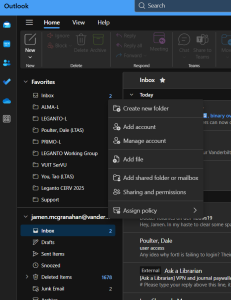
Outlook 365 More menu options

2. Click on the “Add shared folder or mailbox” option:

Add shared folder or mailbox prompt

3. Enter the email address of the shared mailbox:
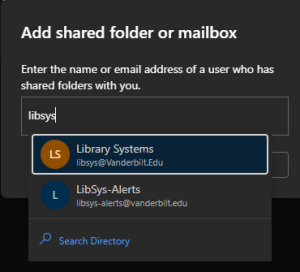
Begin entering the email address of the shared exchanged mailbox.

4. If Outlook recognizes the email address, it will pop up. Just click the one that you want and then select Add:
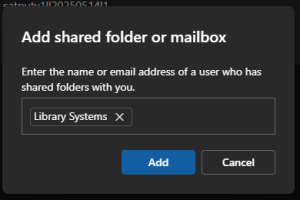
Outlook 365 identifies mailbox

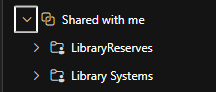
5. Now back in Outlook 365, in your list of folders, look for “Shared with me” folder:
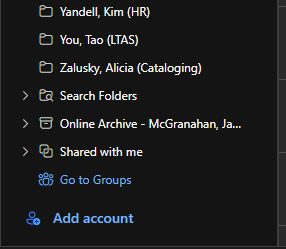
Where to find your Shared Exchange Mailbox? Look in the "Shared with me" group near bottom of the listing of folders.

6. Expand that folder:

Expand the Shared with me group to see all of the Shared Exchange Mailboxes you have added.

And this is where your Shared Exchange Mailboxes are located.
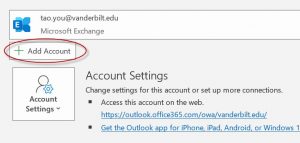
Add a Shared Exchange Mailbox (SEM) to your Outlook client

1. In your Outlook, click “File” menu, then “Add Account”.Outlook.SEM.file.addAccount

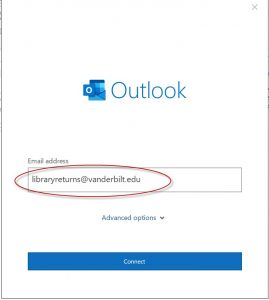
2. The Account setup window pops up, type in the SEM email address, in this case libraryreturns@vanderbilt.edu, click “Connect”.outlook.SEM.addAccount

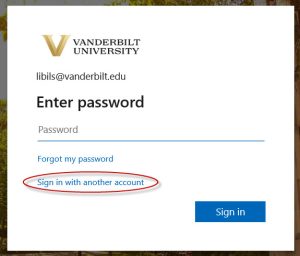
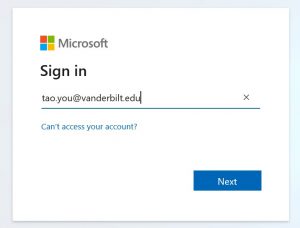
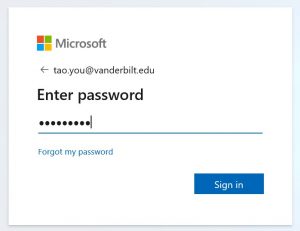
3. If prompted, choose “Office 365” option, then in the next screen, choose “Sign in with another account” option, type in your Vanderbilt email address and your epassword, here I used my Vanderbilt email as an example.

Sign in with a different accountoutlook.SEM.signinoutlook.SEM.epassword


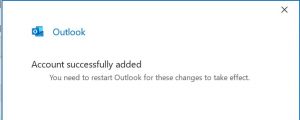
4. Once you see the following screen, your account is set up correctly. Log out your outlook, log back in, the system will start to load emails from the new account, it may take a while.outlook.sem.done

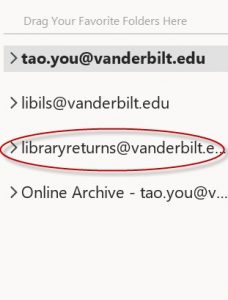
5. Log out your outlook, log back in, now you should see the SEM mailbox added to your account.outlook.sem.added

Troubleshooting tips:

  1. Make sure you know the exact email address for the SEM mailbox.
  2. Make sure you VU email account has been given access right to the SEM mailbox. (check to see whether you can access the SEM mailbox via the web).
  3. If you are still having issues, submit an INFORM, or come to the Friday LTDS office hour.


How to access Shared Exchange Mailbox via the web

Occasionally, there are problems with the Outlook client but you really need to access a shared exchange mailbox. One way to do this is via the web:

http://outlook.com/owa/{emailbox}@vanderbilt.edu

So, if you are trying to access the Central Circulation email box, your URL would look like this:

http://outlook.com/owa/cencirc.library@vanderbilt.edu

It will then prompt you to log in, which you will use your own Vanderbilt email address and epassword and if you are authenticated & authorized, you will see the mailbox.